 |
Class 3 Notes
(notes are in progress and are subject to
change)
|
|
|
<Log On>
Class 3 Outline
- Make notes on the basic computer "survival
skills" for the start of semester given by an expert from Trinity's IT
Department
- Understand how the Trinity network operates
on various levels with various folders and permissions
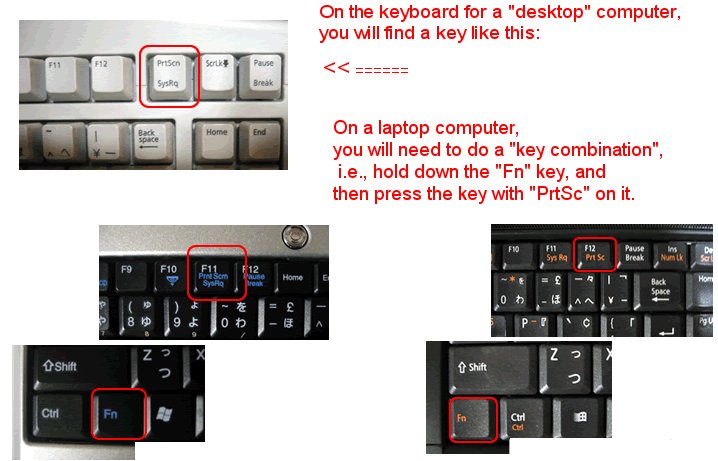
- Know how to take screen shots on both a PC
and Mac and how to paste them into documents
- Explore MS Word 2007 as tool for creating
charts, illustrations and diagrams
- Use these tools to diagram the Trinity
network system for someone who has never encountered it before
Homework
Log In to Discourse 131.194.71.230
Answer Questions
Minimize Discourse
Joe Hatch, User Support Services
Analyst
Computer Survival
Skills - Take notes if you wish - there is a Word file in your
3netdrives folder
-
Clean Access?
-
Mac support?
-
Slow performance?
-

-
Mapping drives/network help?
-
Wireless network: two
"levels"
-
Identity theft and
phishing/New trends in viruses, Trojans, and spyware
Hands-on in class:
Making Screen Captures
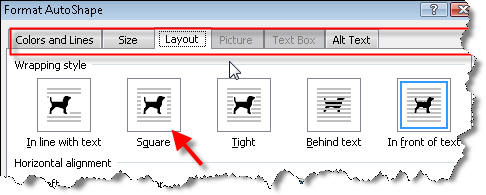
Working with MS Word Drawing tools
- Use shortcuts in Y drive to copy 3netdrives folder from class folder to groups
folder
- The 3netdrives folder has two documents and one
subfolder called Homework inside of it. Open the homework folder and look at the
homework document. Questions?
- Open the one called In Class Screen Shot
Practice - follow directions in class
- Open the one called In Class Basic Word Shapes -
follow directions in class
- You will use these techniques to complete your
Network Drives Diagram for homework.
1. Making Screen Captures
Note: Screen captures are extremely useful for tutorials,
diagrams, and for troubleshooting problems with your computer. Once it is on the
clipboard, it can be pasted into other applications besides Word, including
outlook and Excel.
If you have XP, desktop or laptop:
Source:
http://www.noveltyhill.net/Handouts/Screen-Capture-in-Windows.html
2. Working with MS Word Drawing tools
Drawing Basic Shapes in MS Word 2007


Review:
Add A
Drawing to a Document (MS Online)
- After worksheet is completed, show Snagit as a
commercial alternative - demo edge effects, etc

Homework
Part 1
- Read Chapters 1-3 in the textbook. In Ch. 1, pay
particular attention to how the new Office applications work together. Read the
word processing chapters(2&3). Look over the exercises. You do not have to work
through them, but note what basic skills they cover.
Part 2
Network Folder Diagram
- Copy folder 3netdrives from
Class folder (jbelisle on N) to your Groups folder on
tucc-tiger\groups\ComputerSkills\Belisle\ (use the shortcuts you made in your
Y drive)
- Open the folder, then open the Homework folder.
There is a document inside called Network Folder Diagram ready for you to
complete and save it.
- Follow the directions in the file. Use screen
captures and/or drawings to illustrate the permissions for Y, N, and the shared
Groups folder.
- Imagine that you are explaining how the network
works to someone who has never used this kind of system - keep it simple and
understandable (12 points: 6 for accurate information, 3 for ease of
understanding, 3 for good design)
<Log Out>