Class 28 Notes are in progress and are subject to change
|
|
|
|
|
<Log On>
Discourse
Website Reviews and questions
Access and Excel - Differences, Pros and Cons
Open Home Inventory Database - see how detailed you can get
These words are used often in Access so you will want to become familiar with them when using the program (and before the final exam/data collection):
Open sage's Outdoor Supplies - see realtiuonships
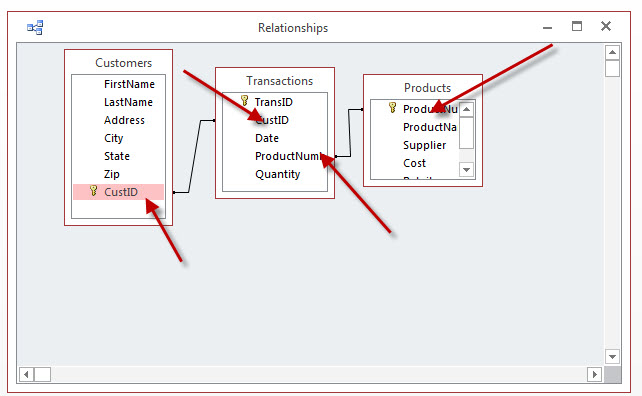
Planning is the most critical step in creating a database. The design of the database should reflect an understanding of how information will be entered and retrieved. A database that is set up correctly will save a lot of headaches in the latter stages of development. For example, if you plan to sort on zip code, there must be a separate field for zip. If you plan to alphabetize using last name, you need a separate field for last name. In general, you should break down information into small fields.
Follow Directions in class for Movie Database Files
Create a report using the wizard to show this information in an organized way
Merging a Form letter and a Database
Exercise: create an invitation for a New Year's party using a database with addresses of friends and merge them to create individual invitations.For the form letter we will need fields for first name and a personal comment. For envelopes we will need information about name and address.
Create Form Letter
- Launch Word.
- open invitation.docx in 27merge folder.
- Design a simple invitation in Word that includes the date and time of the party. Add appropriate clip art and begin the invitation with the word "Dear." We will insert the names later.
- Change text color, insert other images as desired.
- Type your name at the bottom of the page.
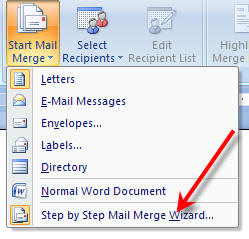
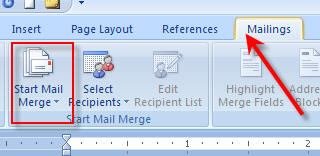
When your invitation is complete, go to the Mailings tab and select Step by Step Mail Merge Wizard from the Start Mail Merge drop down arrows.
Envelope
- New => blank document => Create
Envelope
Envelope Options
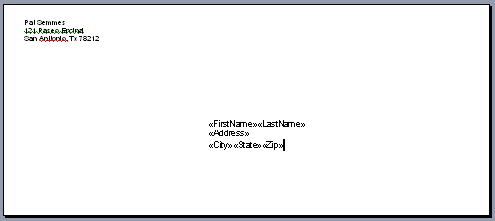
You should see an envelope
- Type the return address and position cursor for inserting mailing address
- To get names and addresses
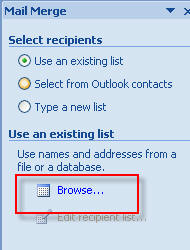
Open Data Source
Browse to contacts.xlsx file
Mail Merge Recipients
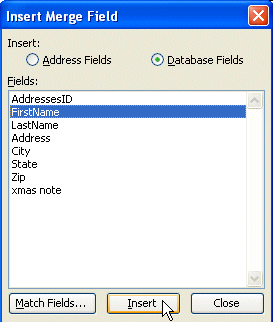
- Now insert the merge fields for the address beginning with FirstName
Continue until the address is complete
- View Merged Data
- Adjust formatting
- Save
Create Envelopes by Merging
- Merge to new document
- A new document is created in a new word window
- Save As => envelopes_merged.doc in 27merge
You are now ready to print your envelopes.
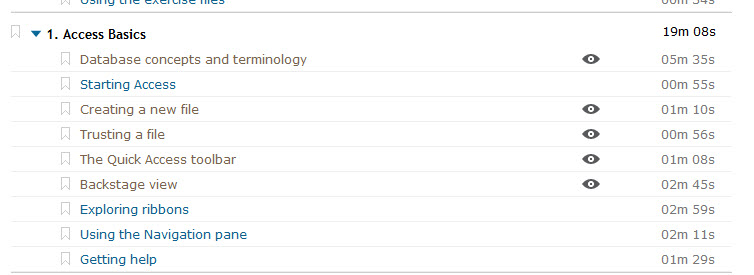
1. View the introduction to Access on Lynda.com - be able to describe tables, fields, reports and queries. Here are the videos you should view:
<Log Off>