Class 4 Notes are in progress and are subject to change
|
|
|
|
|
Log On
Objectives:
Copy 4tunetwork from the Class folder to your Groups folder
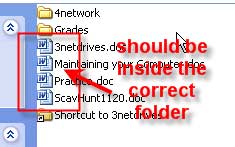
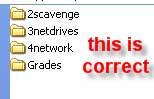
Check Your Groups Folder for Correct File Placement - no "loose" documents should be visible
All assignments should be saved with the correct name in the correct place
 |
 |
Setting Up Your Personal Grades Folder
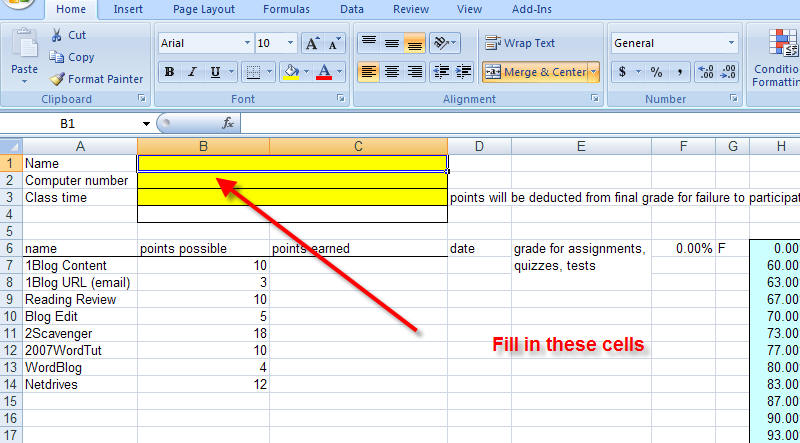
Copy MyGrades folder from class folder to your computer skills shared folder. The file in the folder is named GradesFall09.xlsx. Open the File

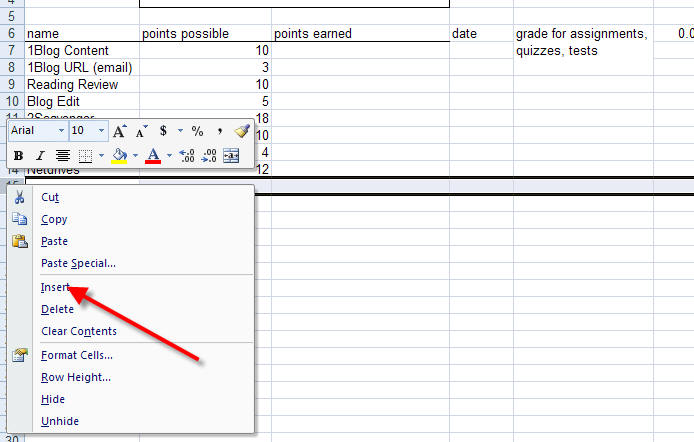
Insert cells for the next grade that you receive.
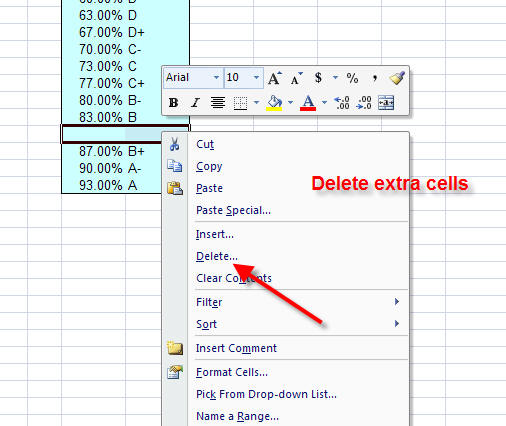
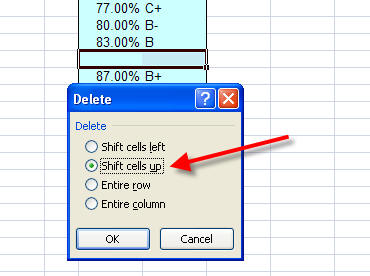
If the grade equivalent cells split, right click on the "extra" rows, go to delete, and select Shift Cells Up
Downloading Photos from the Internet:
Find the web page that has the picture you want to use - check for copyright!!!
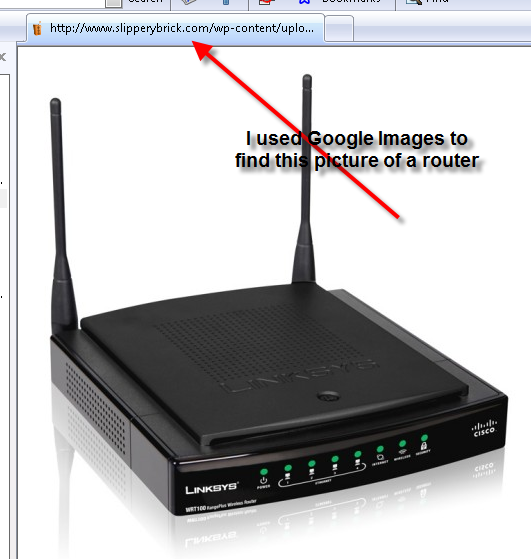
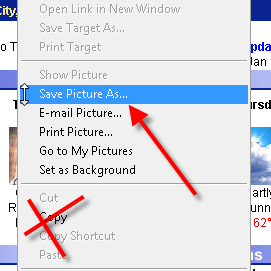
Right-click on the picture and choose Save Picture As (do not Copy):
Save the picture to a file, preferably the same folder that you are working from. In other words, if you are working on the Network Diagram, save the picture in that folder. You can rename the picture when you save it.
Use the Insert command to put the picture in your document and resize it as needed.
Working with Photos in MS Word 2007 and in Picnik - see the practice photos folder in 5photoword
Re-coloring Pictures or Clip Art
Resizing Pictures in MS Word 2007
New Picture Features in Word 2007
Using the Drawing Tools (Continued)
Drawing basic shapes in Word 2007
Diagram of the Trinity Network
Examples (1&2)
- for Good or Evil JL
Assume you are in a dorm room and you to connect to the Trinity network. Make a diagram that shows how information from your computer gets to and from the Internet and where it obtains specific information from the various network servers.
Use text boxes, autoshape connectors, color, clip art, downloaded photos and any drawing tools that will make your diagram easy to understand. Be consistent in your design. You will find it helpful to make a pencil sketch before creating the diagram on the computer. Save you work when completed - do not move the document or change the title.
You may use any of the photos in the NetworkPics folder inside my Class folder but do not forget you have to copy them to your groups folder first!!
To Get Full Credit - with you network diagram open in Word, take a screenshot, save it, and upload it to your blog in a new entry called My Trinity Network Diagram. Make a short comment about the tour and/or the diagram project.
Don't forget about this link - **Word 2003 to Word 2007 Command Guide
Log Out