Catmull-Clark Subdivision Surfaces
Relevant to Blender v2.31
With any regular Mesh as a starting point, Blender can calculate a smooth subdivision on the fly, while modelling or while rendering, using Catmull-Clark Subdivision Surfaces or, in short SubSurf. SubSurf is a mathematical algorithm to compute a "smooth" subdivision of a mesh. This allows high resolution Mesh modelling without the need to save and maintain huge amounts of data. This also allows for a smooth 'organic' look to the models.
Actually a SubSurfed Mesh and a NURBS surface have many points in common inasmuch as both rely on a "coarse" low-poly "mesh" to define a smooth "high definition" surface. But there are also notable differences:
NURBS allow for finer control on the surface, since you can set "weights" independently on each control point of the control mesh. On a SubSurfed mesh you cannot act on weights.
SubSurfs have a more flexible modelling approach. Since a SubSurf is a mathematical operation occurring on a mesh, you can use all the modelling techniques described in this chapter on the mesh. There are more techniques, which are far more flexible, than those available for NURBS control polygons.
SubSurf is a Mesh option, activated in the Editing Context Mesh Panel (F9 - Figure 11). The Num Buttons immediately below it define, on the left, the resolution (or level) of subdivision for 3D visualization purposes; the one on the right, the resolution for rendering purposes. You can also use SHIFT-O if you are in ObjectMode. This switches SubSurf On/Off. The SubSurf level can also be controlled via CTRL-1 to CTRL-4, but this only affects the visualization sub-division level.
Since SubSurf computations are performed both real-time, while you model, and at render time, and they are CPU intensive, it is usually good practice to keep the SubSurf level low (but non-zero) while modelling; higher while rendering.
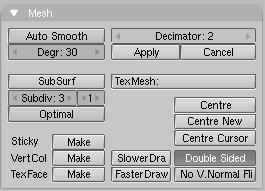
From version 2.3 Blender has a new SubSurfed-related button: Optimal. This changes the way SubSurf meshes are drawn and can be of great help in modelling. Figure 12 shows a series of pictures showing various different combinations on Suzanne's Mesh.
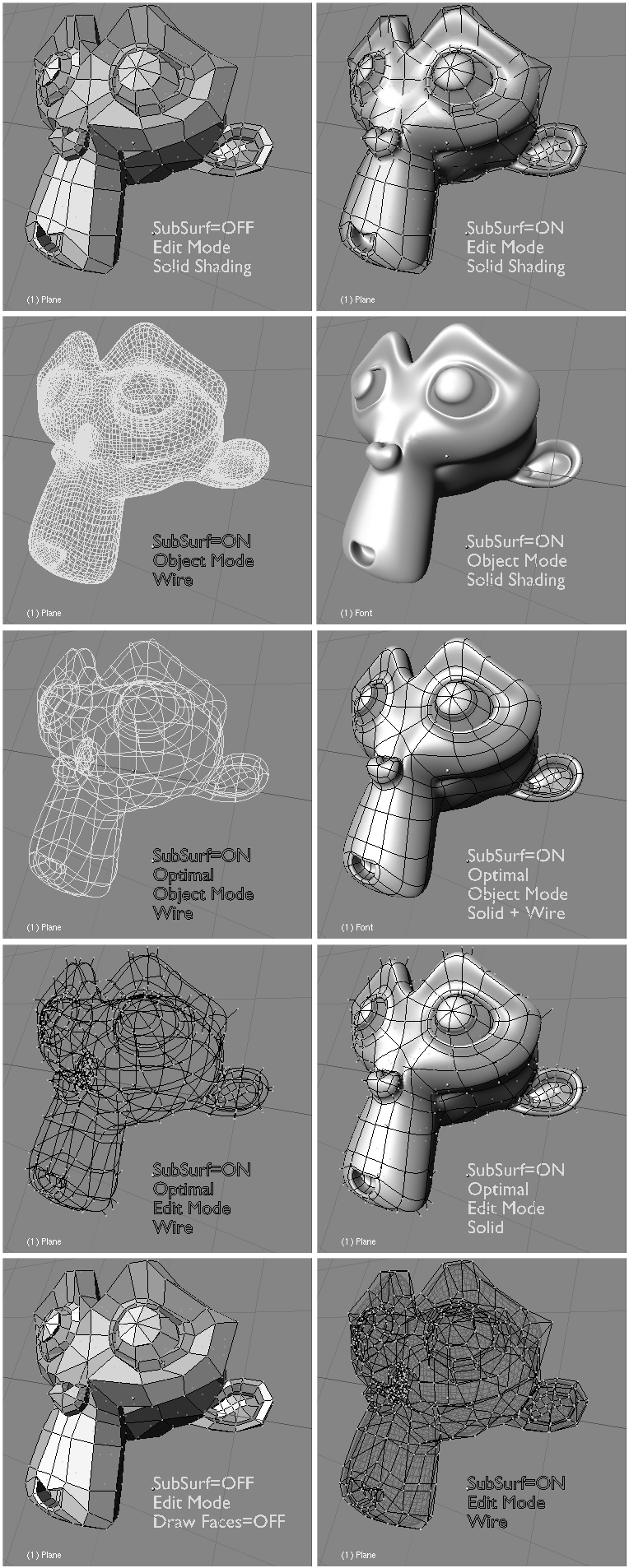
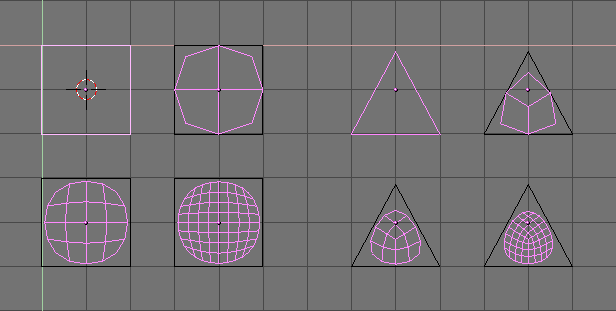
Figure 13 shows a 0,1,2,3 level of SubSurf on a single square face or on a single triangular face. Such a subdivision is performed, on a generic mesh, for each square or rectangular face.
It is evident how each single quadrilateral face produces 4^n faces in the SubSurfed mesh. n is the SubSurf level, or resolution, while each triangular face produces 3*4^(n-1) new faces (Figure 13). This dramatic increase of face (and vertex) number results in a slow-down of all editing, and rendering, actions and calls for lower SubSurf level in the editing process than in the rendering one.
Blender's subdivision system is based on the Catmull-Clarke algorithm. This produces nice smooth SubSurf meshes but any 'SubSurfed' face, that is, any small face created by the algorithm from a single face of the original mesh, shares the normal orientation of that original face.
This is not an issue for the shape itself, as Figure 14 shows, but it is an issue in the rendering phase and in solid mode, where abrupt normal changes can produce ugly black lines (Figure 15).
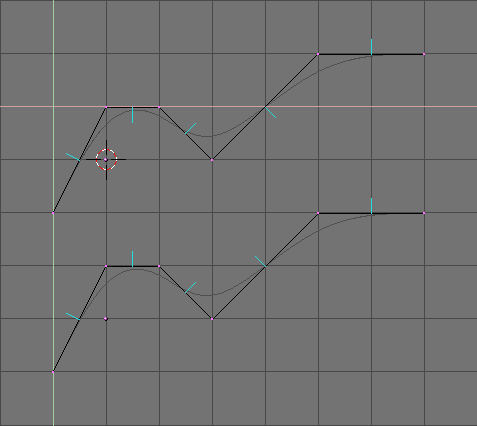
Figure 14. Side view of subsurfed meshes. With random normals (top) and with coherent normals (bottom)
Use the CTRL+N command in EditMode, with all vertices selected, to make Blender recalculate the normals.
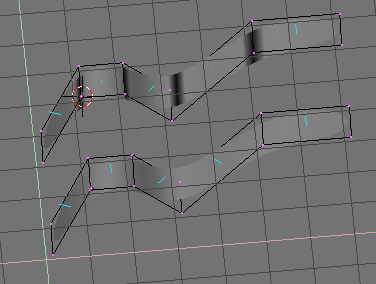
Figure 15. Solid view of SubSurfed meshes with inconsistent normals (top) and consistent normals (bottom).
In these images the face normals are drawn cyan. You can enable drawing normals in the EditButtons (F9) menu.
Note that Blender cannot recalculate normals correcty if the mesh is not "Manifold". A "Non-Manifold" mesh is a mesh for which an 'out' cannot unequivocally be computed. Basically, from the Blender point of view, it is a mesh where there are edges belonging to more than two faces.
Figure 16 shows a very simple example of a "Non-Manifold" mesh. In general a "Non-Manifold" mesh occurs when you have internal faces and the like.
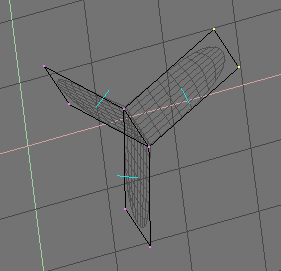
A "Non-Manifold" mesh is not a problem for conventional meshes, but can give rise to ugly artifacts in SubSurfed meshes. Also, it does not allow decimation, so it is better to avoid them as much as possible.
Use these two hints to tell whether a mesh is "Non Manifold":
The Recalculation of normals leaves black lines somewhere
The "Decimator" tool in the Mesh Panel refuses to work stating that the mesh is "No Manifold"
The SubSurf tool allows you to create very good "organic" models, but remember that a regular Mesh with square faces, rather than triangular ones, gives the best results.
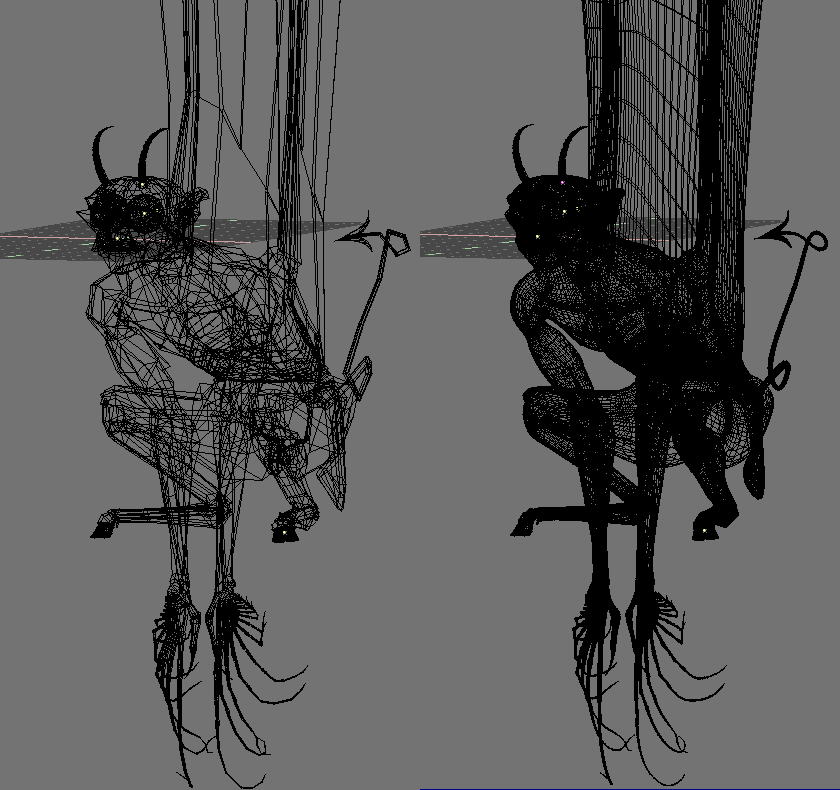
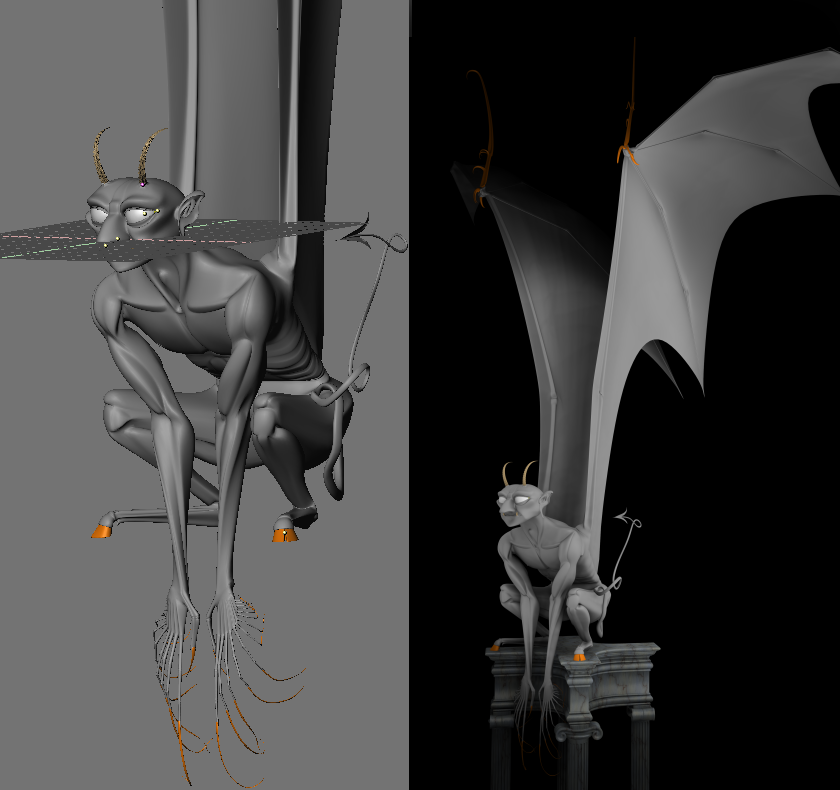
Figure 17 and Figure 18 show an example of what can be done with Blender SubSurfs.