Edge Tools
Relevant to Blender v2.31
In Blender 2.30 some brand new modelling tools were added. These are focused on Edge, as opposed to vertex, modelling.
A key issue in Modelling is often the necessity to add vertices in certain zones of the mesh, and this is often regarded as splitting, or adding, edges in a given region. Blender now offers two tools for this, a Knife Tool able to split edges in desired locations, and a Face Loop tool, able to select face paths and split them consistently.
The Edge Tools are grouped in a menu which is linked to KKEY Hotkey, but each individual tool has its own hotkey as well.
Knife Tool
The Knife Tool works by subdividing edges if both their verts are selected and the edge is intersected by a user-drawn "knife" line. For example, if you wish to cut a hole only in the front of a sphere, you can select only the front vertices, and then draw the line with the mouse.
To test the tool add a Grid Mesh. You will be in EditMode and all vertices are selected. Press SHIFT-K to activate the Knife Tool. You are prompted to choose the type of cut: Exact will divide the edges exactly where the knife line crosses them, Centers divides an intersected edge at its midpoint. For this cut, we chose Centers.
Now you can click LMB and start drawing. If you move and click LMB you draw straight segments from clicked point to clicked point; if you hold LMB pressed while dragging you draw freehand lines. The polylines can be drawn with an arbitrary number of segments, but the intersection routines only detect one crossing per edge. Crossing back over an edge multiple times does not perform additional cuts on it. MMB constrains drawing to an axis as expected. Snap to grid is not currently implimented, but is being looked at for future releases. When you have finished drawing your line, hit ENTER to confirm the cut. ESC at any time cancels the operation. Figure 19 shows some examples.
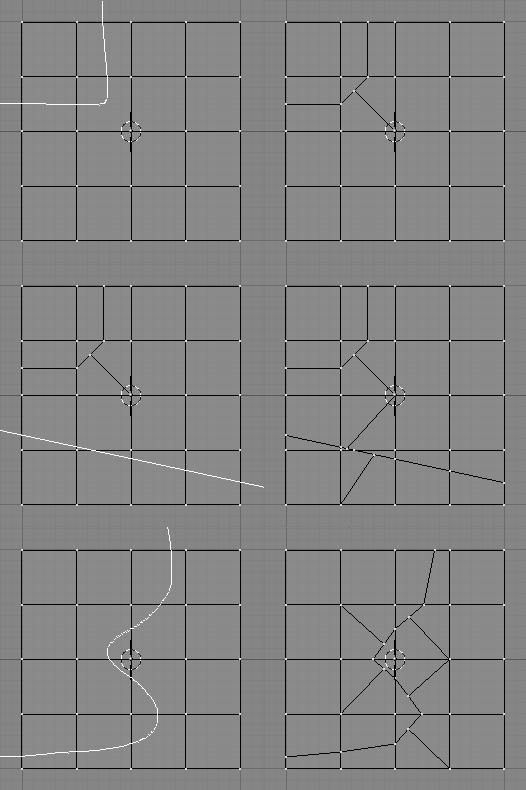
Figure 19. Center knife with polyline (top); Exact Knife with single segment (middle) and Exact freehand knife (bottom).
 | With a large mesh, it will be quicker to select a smaller number of vertices, those defining only the edges you plan to split since the Knife will save time in testing selected vertices for knife trail crossings. |
Face Loop
The Face Loop tool allows you to select and, eventually, split, a loop of faces. This loop is defined starting from an edge, below the mouse pointer, and the two faces sharing that edge.
The two faces belong to the loop, every further face opposed to these is also part of the loop. The loop ends when a triangular face is reached or the loop closes on itself. Loop selection is activated with SHIFT-R (Figure 20).
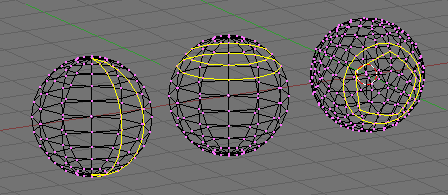
By moving the mouse different faceloops are highlighted. Press LMB or ENTER to select the desired one, ESC to exit.
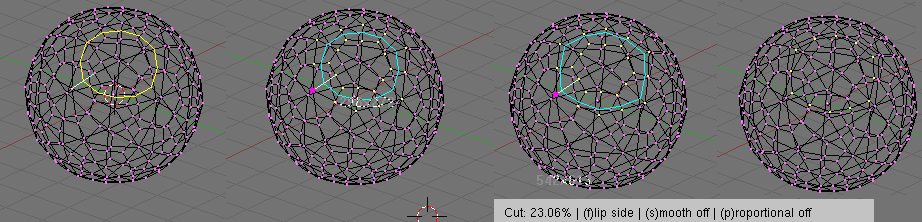
If the face loop selection is entered via CTRL-R rather than SHIFT-R then the action performed is not a mere selection, but the face loop is split in two along its median line. This is a really useful way to refine a mesh in a SubSurface-Friendly way. (Figure 21).
| Both Face Loop tools are present in the KKEY menu too. |